
7 Dangerous Ways to Store Passwords (& Safe Fixes)
Last updated: July 2026
We keep moving more of our lives online, and every account needs its own password. The advice to never reuse them is everywhere. What gets talked about far less is where those passwords actually live once you've created them.
That storage decision matters more than people realize. A strong, unique password is only as safe as the place you keep it. Stash it somewhere convenient but exposed, and you've handed an attacker the easy way in.
Below are seven of the most common risky places people keep passwords, why each one is a problem, and exactly what to do instead. None of these are edge cases. They're everyday habits, and most of them have a five-minute fix.
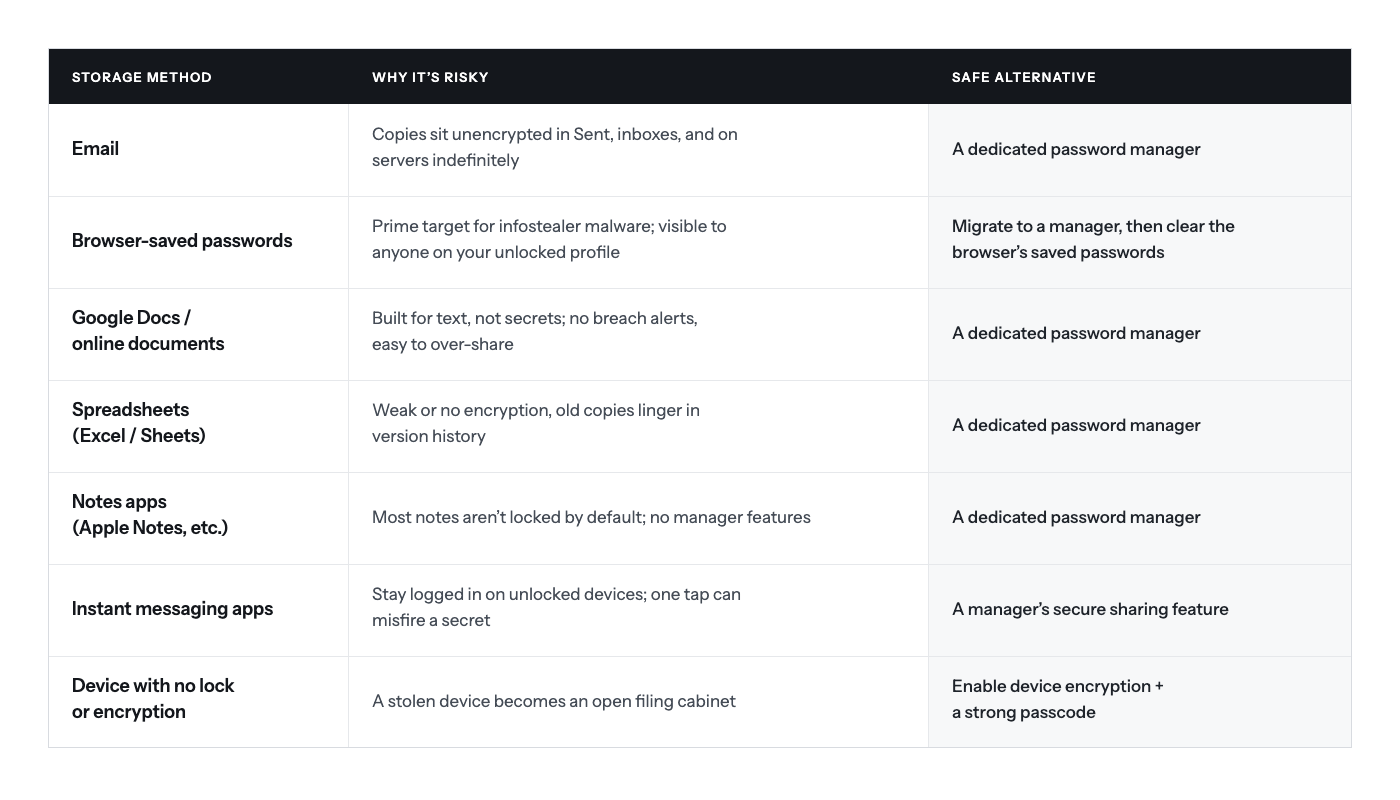
TL;DR: where not to store passwords (and what to do instead)
1. Email
We've all been tempted: you make a new password and email it to yourself so you won't forget it. It feels convenient. It's also one of the leakier places you can put a secret.
The risk. Email was never built to be a vault. Mail between major providers usually travels over an encrypted connection now, but that protection is opportunistic rather than guaranteed, and it does nothing about the copies that pile up afterward. Your password ends up sitting in plain, readable text in your Sent folder, in the recipient's inbox (even if that recipient is just you), and on mail servers you don't control.
What actually happens. Inboxes are a top target precisely because they're a goldmine. If someone gets into your email through a phishing link or a reused password, every credential you ever emailed yourself is right there, searchable. Worse, email is often the account that can reset all your other accounts, so one compromised inbox can unravel everything else.
Do this instead. Never send a password by email, not even to yourself. Store it in a password manager, which keeps it encrypted and out of your message history entirely. If you need to hand a login to a coworker, use a manager's secure sharing rather than pasting it into a thread.
2. Browser-saved passwords
When Chrome, Safari, or Edge offers to "save your password," most of us click yes without thinking. It's the single most common place people keep credentials, and it's riskier than it looks.
The risk. Browser password stores are a favorite target of "infostealer" malware, a category of software built specifically to scrape saved logins, cookies, and autofill data the moment it lands on a machine. On top of that, saved passwords are viewable in plain text by anyone who can get into your unlocked computer profile. In most browsers it takes a couple of clicks in settings to reveal them.
What actually happens. Someone downloads a sketchy attachment or a cracked app, an infostealer runs quietly, and within minutes a dump of their browser-saved passwords is for sale. Because the browser stays signed in, the attacker often inherits active sessions too, skipping the password step altogether.
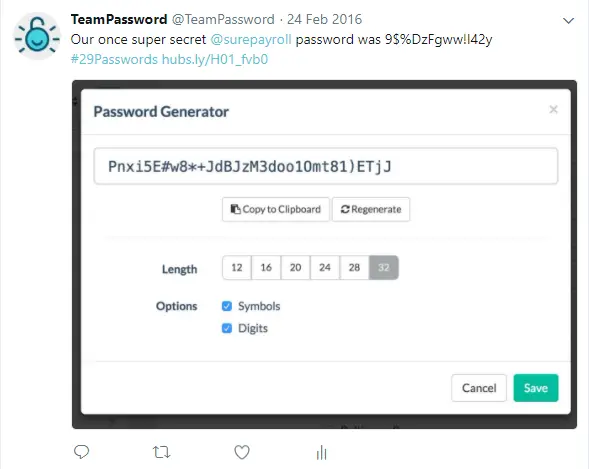
Do this instead. Move your logins into a dedicated password manager, then turn off the browser's built-in password saving and clear what's already stored. A good manager still autofills for you, so you lose no convenience. If you want to test your new habits, generate fresh credentials with a password generator as you migrate.
3. Google Docs and other online documents
A lot of people like keeping important information in Google Docs or a similar online document. It syncs everywhere and it's easy to search. For passwords, though, it's the wrong tool.
The risk. Document editors are designed for text, not secrets. The document isn't individually encrypted the way a vault entry is; its safety rests entirely on your account login. There's no breach monitoring, no alert if a credential inside it turns up in a leak, and sharing is dangerously easy to get wrong. One "anyone with the link can view" setting turns your password list into a public page.
What actually happens. People share a doc for one reason, forget the link is still live, and it quietly stays accessible for years. Or they step away from an unlocked laptop for a coffee, and an open doc full of logins is right there for whoever walks by.
Do this instead. Keep credentials in a password manager, where each entry is encrypted and sharing is deliberate and revocable. If you already have a "passwords" doc, move everything into a manager and delete the doc, including from your trash.
4. Spreadsheets (Excel and Google Sheets)
The spreadsheet is the natural next step up from a document: columns for the site, the username, the password. It feels organized. It's still not safe.
The risk. Spreadsheets weren't built to protect secrets either. Excel's password protection is notoriously weak and can be stripped by freely available tools, and a Google Sheet is only as protected as the account behind it. Neither warns you when a stored credential is breached, and both keep a version history, so deleting a row doesn't necessarily erase the old value.
What actually happens. A shared team "passwords.xlsx" gets emailed around, saved to desktops, and copied into cloud drives until nobody knows how many copies exist or who can open them. Version history quietly preserves credentials you thought you'd removed months ago.
Do this instead. Use a password manager instead of a spreadsheet. If you're currently running a team on a shared sheet, import it into a manager, then delete the file everywhere it lives and purge the version history and trash.
5. Notes apps
Note-taking apps like Apple Notes, Google Keep, and Samsung Notes are great for grocery lists and half-formed ideas. Reaching for one to store passwords is understandable, but it leaves gaps a real vault wouldn't.
The risk. To be fair to the apps: some do offer real protection. Apple Notes, for example, supports end-to-end encrypted "locked notes" secured by a passphrase (Apple documents this). The catch is that locking is per-note and off by default, so the overwhelming majority of notes sit unprotected, and the feature isn't designed for the way you'd actually use dozens of logins.
More to the point, a notes app is missing everything that makes a password manager a password manager: no password generation, no autofill, no breach monitoring, no secure sharing, and no audit trail of who opened what.
What actually happens. Someone saves a handful of passwords in a normal, unlocked note "just for now." The note syncs to every signed-in device, and anyone who picks up an unlocked phone can read it in seconds.
Do this instead. Keep passwords in a purpose-built manager. If you like the frictionlessness of notes, you'll find a manager is actually faster once autofill is set up, and every entry is encrypted without you remembering to lock it.
6. Instant messaging apps
WhatsApp, Messenger, Signal, and Snapchat are how a lot of us communicate, so it's tempting to fire a password over to a colleague or family member in a chat. Convenient, yes. Safe, not really.
The risk. This one comes with a fairness caveat too: apps like WhatsApp and Signal do provide strong end-to-end encryption for messages, so the "it's not encrypted" worry is overblown. The real problem is different. Messaging apps aren't password vaults, and they're built to stay signed in and running in the background on devices that are frequently unlocked.
What actually happens. You send a login to a teammate, and now that credential lives permanently in two chat histories on two phones, either of which might be borrowed, lost, or left unlocked. A single mistaken tap or autocomplete can also fire a password to the wrong contact, and there's no taking it back.
Do this instead. Don't send passwords through chat. Share them with a password manager's secure sharing feature, which lets you grant access without exposing the raw credential and lets you revoke it later. For a one-off handoff to someone outside your team, a one-time secure link beats a chat message every time.
7. A device with no lock screen or encryption
Of all the risky habits here, keeping passwords on a device that has no lock and no encryption is the most exposed. You may feel your laptop or tablet never leaves your side. Devices get lost and stolen all the time, and an unprotected one is an open filing cabinet.
The risk. Without a lock screen, anyone who picks up the device is already in. Without disk encryption, even a locked device can give up its data to someone who pulls the drive or boots into recovery. Either gap turns a stolen gadget into a stolen identity.
What actually happens. A bag is snatched or a laptop walks off from a café table, and the thief doesn't need to defeat any security because there wasn't any. Every saved login, session, and file is available at once.
Do this instead. Turn on device encryption and set a strong passcode. It takes a few minutes:
- iPhone / iPad: encryption switches on automatically once you set a passcode. Use a strong one under Settings → Face ID & Passcode → Change Passcode → Passcode Options → Custom Alphanumeric Code.
- Android: set a PIN, password, or biometric lock under Settings → Security; modern Android encrypts storage by default once a lock is in place.
- Windows: turn on BitLocker (or Device Encryption) under Settings → Privacy & security → Device encryption.
- Mac: turn on FileVault under System Settings → Privacy & Security → FileVault.
If you must set a device or account password by hand, make it long. Current NIST guidance (SP 800-63B) points to a minimum of at least 15 characters for single-factor passwords, well beyond the old eight-to-twelve rule of thumb. A memorable passphrase of several random words is easier to remember and harder to crack than a short jumble of symbols. Length is what defeats a brute-force attack.
Dishonorable mentions
Two more habits didn't earn a full section, but they cause plenty of trouble:
- Sticky notes and paper. A password on a Post-it stuck to your monitor is readable by anyone who walks past, photographs it, or empties your recycling. If you insist on a paper backup, keep it in a locked drawer or safe, never on or near the device it unlocks.
- Reusing one password everywhere. This isn't a storage location, but it's the habit that turns any single leak into a chain reaction. When one reused password is exposed, attackers try it against your other accounts automatically, a technique called credential stuffing. Unique passwords per site contain the damage.
So where should you store passwords?
Every method above fails for the same reason: it was built for something other than guarding secrets. A dedicated password manager is built for exactly that, and it fixes the whole list at once.
A good manager encrypts every entry, generates strong unique passwords for you, autofills them so you never retype (or email) a credential again, warns you when one of your logins shows up in a breach, and lets you share access securely without ever exposing the raw password. For teams, it adds roles, permissions, and an audit trail so you can see who accessed what.
If you're weighing options, our guide to the best password managers for teams walks through what to look for. The short version: pick a manager, move your passwords in, and delete them from all the risky places above.
Frequently asked questions
Where is the safest place to store passwords?
A dedicated password manager. It encrypts each credential, keeps secrets out of your email and chat history, generates strong unique passwords, and alerts you if one is exposed in a breach. It's safer than any browser, document, spreadsheet, or notes app, and far safer than memory or paper.
Is it safe to store passwords in Google Docs?
No. A Google Doc isn't individually encrypted the way a vault entry is; its safety depends entirely on your account login, and there's no breach monitoring. Sharing is also easy to get wrong, and old values linger in version history. Use a password manager and delete any existing "passwords" doc, including from your trash.
Is it safe to save passwords in my browser?
It's convenient but risky. Browser password stores are a primary target for infostealer malware, and saved passwords are viewable in plain text by anyone with access to your unlocked profile. Move them into a dedicated manager, then turn off browser password saving and clear what's stored.
Should I write my passwords down?
A paper list left on your desk is easy for others to see, photograph, or steal. If you keep a written backup at all, store it in a locked drawer or safe, away from the devices it unlocks. For everyday use, a password manager is more secure and far more convenient.
Keep your team's passwords out of risky places with TeamPassword
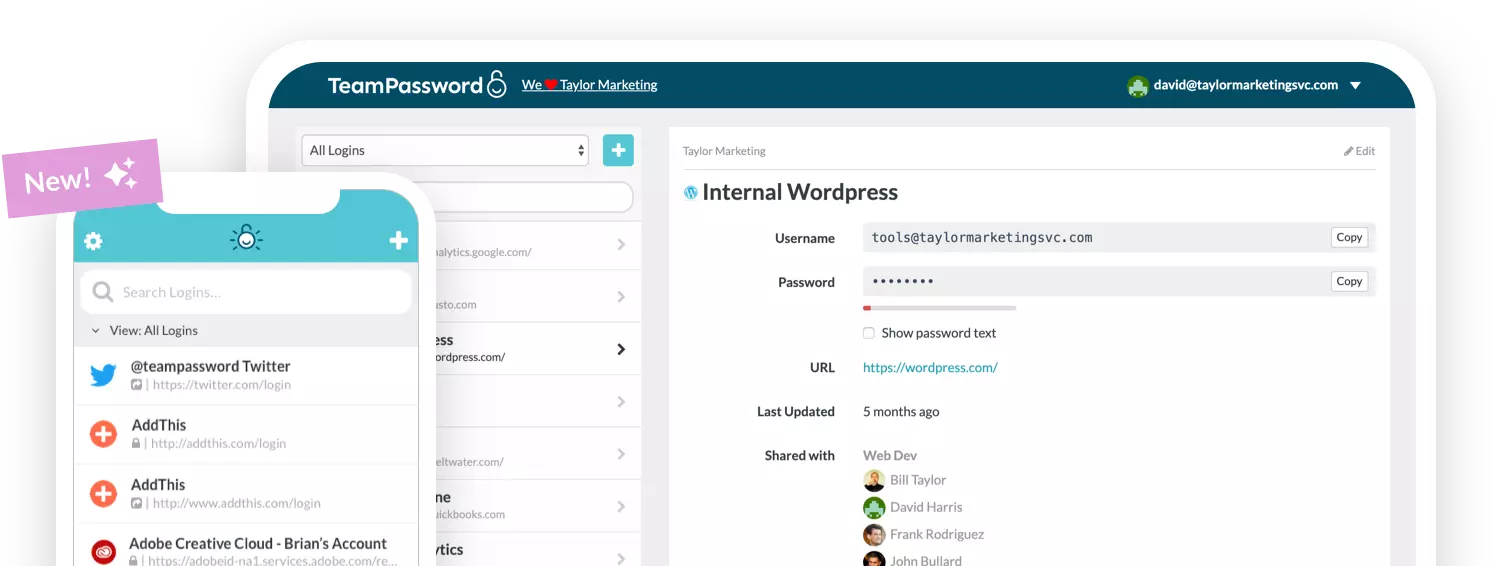
If reading this made you think about the passwords currently sitting in an inbox, a browser, or a shared spreadsheet, TeamPassword is built to replace all of them. Everything lives in an encrypted vault, so you stop scattering credentials across tools that were never meant to hold them.
- Enforceable 2FA — require two-factor authentication for every user, so a single weak login can't undo the whole team.
- Integrated TOTP authenticator — generate time-based codes right inside TeamPassword, no separate app to juggle.
- Secure sharing and one-time links — hand a credential to a teammate or an outside contractor without ever pasting it into email or chat, and revoke it when you're done.
- Detailed activity logs — a full audit trail of who accessed what and when, ready for security reviews.
Plans start at just $2.41 per user per month (Standard), with Enterprise at $5.25 per user per month, billed yearly. See how the vault protects your credentials on our security page, or start your free trial →