
Sharing passwords with family is normal now. It's cheaper to split a streaming subscription than for everyone to pay their own way, and there are accounts a spouse or adult child genuinely needs to reach in an emergency. The problem is how most families do it: over text, email, or a note on the fridge, which quietly exposes everyone to attack.
There's a safer way, and it isn't complicated.
The safest way to share family passwords, in 3 steps
- Put every shared login in a password manager instead of texts, notes, or a spreadsheet.
- Create groups so each family member only sees what they actually need (streaming for everyone, bank for the adults).
- Turn on two-factor authentication and set up emergency access, so the right people can get in if something happens to you.
TeamPassword is a secure password manager built to share credentials safely, with robust security features and end-to-end encryption. Sign up for a 14-day free trial and secure your family's logins.
Why share passwords with family?
A few common reasons:
- To share digital services like Netflix, HBO Max, and Apple TV.
- For emergencies, so someone can reach financial, insurance, email, or medical accounts if a family member is incapacitated or passes away.
- For parental supervision of kids' accounts and devices.
Sharing digital services
The most common reason is entertainment. Before you start sharing, check whether the service already offers a family plan or multiple profiles. Sometimes sharing a password isn't even necessary.
For emergencies
Families also share access in case of emergencies, when someone needs to reach financial or insurance information, an email account, or social media on another person's behalf. This is the scenario most people underprepare for, and we cover how to set it up properly below.
Parental supervision
Kids love to roam and download apps, and they tend to create weak passwords, which makes them easy targets. There's usually little money to steal directly from a child's account, but criminals use kids as a route to their parents. To keep track, parents often hold their children's account passwords, which quickly becomes one more thing to manage.
What kinds of passwords do families share?
- Streaming services
- Subscription services
- Wi-Fi passwords
- Shared bank accounts
- Email, cloud storage, and social media accounts (especially for emergencies)
Why strong passwords matter for families
Cybercriminals go for easy targets. Rather than spend months breaking into a hardened corporate network, they'll happily breach a family's accounts in a day for a quick payout, whether that's draining a bank account or selling stolen data.
It isn't only about money, either. If someone in your household works for the government or a company with sensitive data, attackers may use a weak home account as a stepping stone into a more secure network. Getting in through a personal device or a shared password is often far easier than beating official defenses.
Shared accounts like Google or iCloud are especially dangerous if compromised. A single break-in can lead to identity theft and long-term financial and emotional fallout. Strong, unique passwords on every account are the simplest defense, and a password manager is what makes that realistic across a whole family.
The risks of sharing passwords with family
Sharing can feel harmless, but the usual methods aren't. At work we're strict about password hygiene; at home we relax, and that's where trouble starts.
Passing credentials through email, chat, spreadsheets, or notes is convenient and easy to breach. If an attacker gets your credentials, they can launch follow-on scams to trick your family into handing over even more, like card numbers or bank logins. There's also the password-reset problem: when someone updates a password, they rarely remember to reshare it, so families either stop resetting passwords or pick weak ones everyone can remember. Both are bad.
Here are the attacks that weak passwords and careless sharing invite.
Spear-phishing
Spear-phishing is more dangerous than ordinary phishing because it's targeted. Attackers gather personal details, often from social media or a breached account, and craft messages that look legitimate to trick you into sharing information or clicking a malicious link.
How to protect your family:
- Be skeptical of unexpected messages, even from people you know. Check the sender's address.
- Educate your family. Teach kids and teens the signs: poor grammar, odd links, urgent demands.
- Turn on email filters and anti-phishing tools.
- Verify requests for sensitive info through a separate channel, like a phone call.
- Use a password manager, which won't autofill your credentials on a lookalike phishing site.
Credential stuffing
Credential stuffing is when attackers take stolen login pairs and try them across many sites. Because people reuse passwords, one breached account can cascade into many. Steal your Netflix login, try it on your bank.
How to protect your family:
- Use a unique password for every account. Reuse is the whole vulnerability.
- Turn on two-factor authentication (2FA) everywhere it's offered.
- Monitor for breaches with a service like Have I Been Pwned.
- Change any compromised password immediately, along with anything similar.
Brute-force attacks
Brute-force attacks involve automated tools guessing thousands of passwords per second. Weak favorites fall fast: anything with "password" in it, family or pet names, simple variations like "netflix123," or phone numbers and addresses.
How to protect your family:
- Create long, complex passwords, at least 12 characters, mixing cases, numbers, and symbols.
- Avoid anything guessable from your social media.
- Use a password manager to generate random passwords for you.
- Rely on account lockouts and rate limits where services offer them.
- Enable 2FA so a guessed password still isn't enough.
The safest way to share passwords with family
| Option | Cost | Strengths | Watch-outs |
|---|---|---|---|
| Built-in (Apple Passwords / Google) | Free | Free, easy if everyone's on the same ecosystem | Weak cross-platform support; limited access control; no real audit trail |
| Dedicated family plans (1Password, Bitwarden Families) | ~$3–5/mo per family | Designed for households; shared and private vaults | A separate subscription; features vary by tier |
| TeamPassword | From $2.41/user/mo (3-user minimum) | Unlimited groups, enforceable 2FA, detailed activity logs, temporary guest access | Built for teams, so it's billed per user with a three-user minimum rather than a flat family price |
A note on fit: TeamPassword is a team and business tool, so it's priced per user (from $2.41/user/month) with a three-user minimum. For a larger household that wants granular groups, strong access controls, and an activity log for supervising kids, that's a great match. If you're two people who both live entirely in Apple's ecosystem, the free built-in option may be all you need. We'd rather tell you that than oversell.
Is TeamPassword safe for families?
TeamPassword is a secure hosting provider with multiple security accreditations, the same protections businesses rely on to guard company assets.
You can review the details on our security page. We follow strict protocols when deploying updates and run regular vulnerability sweeps.
When you save a password, the data is hashed, salted, and encrypted locally on your device before it's uploaded to our servers. No one can intercept or read your passwords, not even TeamPassword staff. Everything is stored with AES-256 encryption, the standard trusted by government agencies and multinationals worldwide.
So yes, your family's passwords are safe with TeamPassword.
How to share passwords with family via TeamPassword
Here's the setup, step by step.
- Invite each family member. They'll get an email with a link to create their own TeamPassword account. Have everyone choose a strong, unique master password and enable 2FA.
- Map out your groups before you add logins. A simple family "vault map" might look like this:
- Everyone — streaming, Wi-Fi, shared shopping accounts
- Adults only — bank, insurance, utility, and mortgage logins
- Per child — that child's Google, social media, and iCloud accounts (visible to parents)
- Create those groups in TeamPassword and drop the relevant logins into each.
- Share each group with the right people. Only mom and dad see the bank group; the whole household sees streaming.
- Set up 2FA and emergency access (next section) so the setup is resilient.
Because access is group-based, adding or removing a person is instant. No need to rotate passwords every time something changes.
Set up emergency and legacy access
This is the step most families skip and later regret. Decide now who should be able to reach critical accounts if you're incapacitated or pass away, and set it up while you can.
A practical approach with TeamPassword:
- Create an "Emergency" group containing the accounts a trusted person would need: primary email, banking, insurance, cloud storage, and any password-recovery accounts.
- Share that group with one or two trusted adults, or keep it ready to share and document where the instructions live.
- Make sure that trusted person also has what they'd need to get into your TeamPassword account itself (for example, your recovery process), and store any legal documents (a will, power of attorney) alongside the plan.
- Review it once a year. Accounts and people change.
The goal is simple: the right person can get in when it matters, and no one else can before then.
Temporary access for guests
Not everyone needs permanent access. If a friend or relative comes to stay, create a group with your Wi-Fi password and streaming logins, share it for the visit, and remove them when they leave. Their access ends the moment you remove them, which is far safer than texting the password and hoping they delete it. For a one-off credential you need to hand to someone outside the family, a one-time secret link expires after a single view.
How family members log in
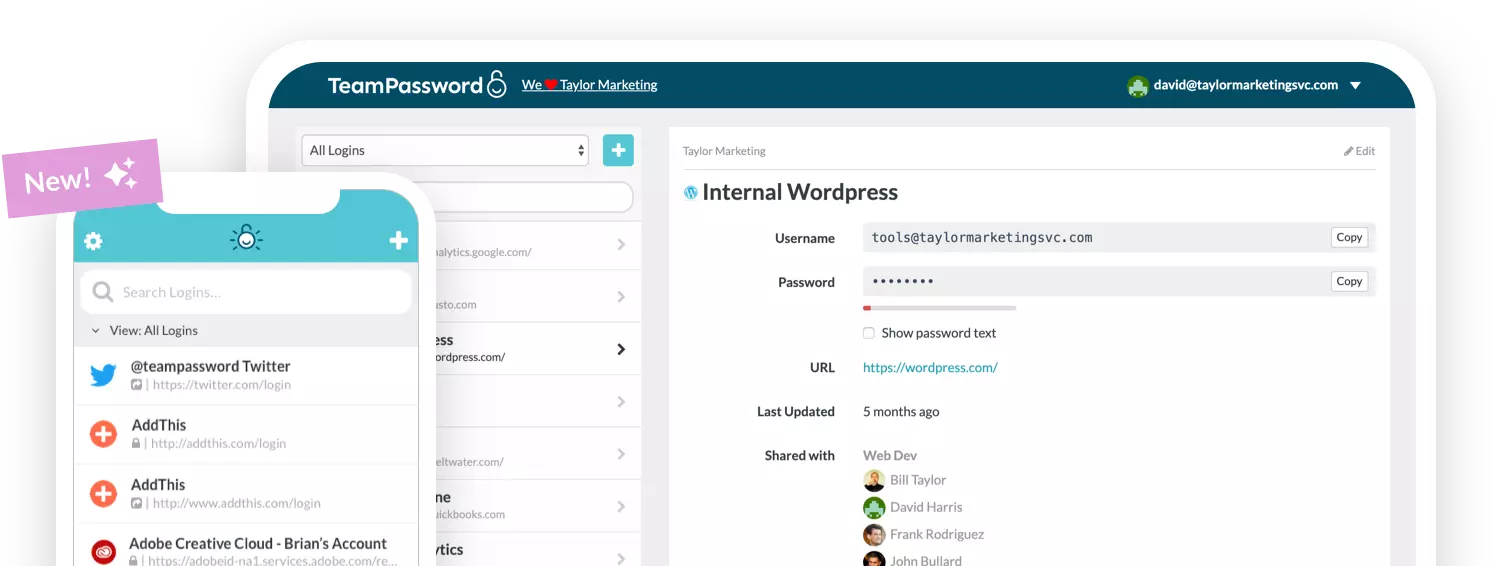
Everyone can log in through TeamPassword's browser extensions (Chrome, Firefox, and Safari) or the mobile app (iOS and Android). From the extension, a login is a couple of clicks, with no copying, pasting, or memorizing.
Say goodbye to weak passwords
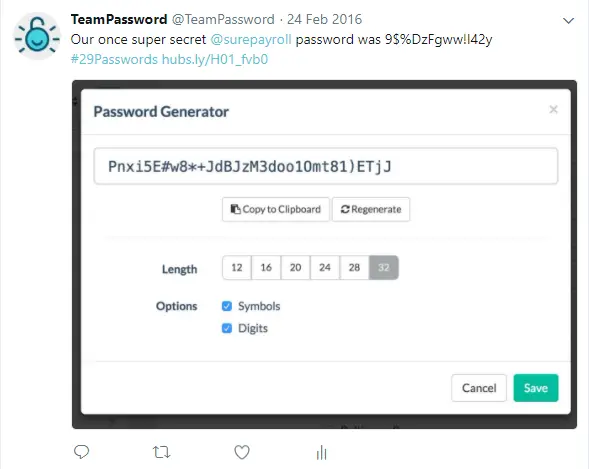
TeamPassword's built-in password generator creates strong, unique credentials for every account, so no more netflixp@$$w0rd123. Your passwords end up looking like mD2$vR6~gA9#oE6: random, unguessable, and remembered for you. The generator produces passwords from 12 to 32 characters using uppercase, lowercase, numbers, and symbols.
Two-factor authentication
Each family member can enable 2FA so that even a stolen master password won't unlock their vault. TeamPassword works with an authenticator app like Google Authenticator or Authy (see our roundup of the best authenticator apps) as a second factor, on both iOS and Android.
Activity monitoring and email alerts
The activity log makes it easy for parents to keep an eye on kids: you can see which credentials were viewed, when someone logged in, and whether a login was shared, changed, or deleted.
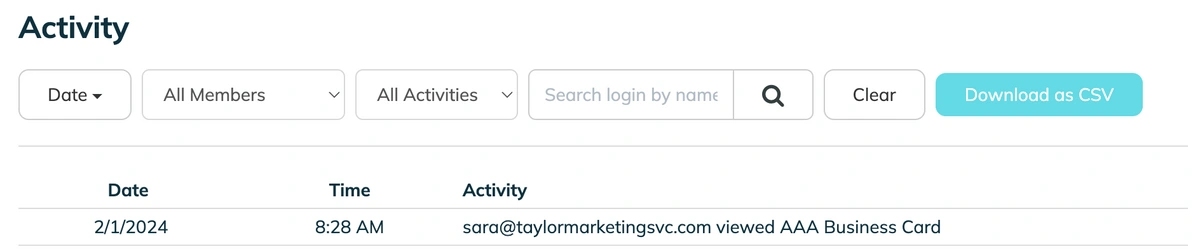
You can also set up email notifications for instant alerts on any of these actions.
Frequently asked questions
What's the safest way to share a password with family?
Through an encrypted password manager. It shares the credential without exposing it in plaintext, lets you control exactly who sees what, and lets you revoke access instantly. It's far safer than text, email, or a shared note.
How do I share my Netflix password safely?
First check whether Netflix's own plan already covers your household with extra members or profiles. If you still need to share the login, store it in a password manager and share it via a group, rather than texting it around where it can be forwarded or intercepted.
How can my family access my accounts in an emergency?
Set up emergency access ahead of time. Create a dedicated group with your most critical accounts (email, banking, insurance), share it with one or two trusted people, and keep it alongside any legal documents. Review it yearly.
Is it safe to text a password to family?
No. Texts and chat messages sit unencrypted on multiple devices, can be forwarded, and stick around long after they're needed. If a phone is lost or an account is breached, that password is exposed. Use a password manager instead.
Get a free 14-day TeamPassword trial
Stop sharing credentials through spreadsheets, notes, and chat. Secure your family's digital life with a tool built for safe sharing:
- Unlimited groups to organize logins by household, by adult, or per child.
- Enforceable 2FA so every account carries a second layer of protection.
- AES-256 vault encryption, the industry standard for keeping passwords safe.
- Activity logs for full visibility, ideal for parents supervising kids' accounts.
Plans start at $2.41 per user per month (three-user minimum). Try the no-commitment free trial and set your family up the safe way. →