
Chrome has probably been saving your passwords for years. Most people only go looking for them when they need a password on a device that is not autofilling, when they are cleaning up old logins, or when they are moving to a dedicated password manager and need everything in one place.
This guide covers the whole of Chrome's password manager: where your saved passwords are on desktop, Android, and iPhone, how to view, edit, add, delete, export, and import them, what Password Checkup and on-device encryption actually do, and where Google Password Manager stops being enough.
If you only want to know where the list lives, it is at passwords.google.com or, inside Chrome, under the three-dot menu at Passwords and Autofill > Google Password Manager.
What Chrome's Password Manager Actually Is
Chrome does not have its own separate password vault. What people call "the Chrome password manager" is Google Password Manager, a service tied to your Google account rather than to the browser.
That distinction matters in practice:
- Your saved passwords follow your Google account, not your copy of Chrome. Sign into Chrome on a new laptop and they appear there.
- They are reachable from outside Chrome at passwords.google.com, including from Safari or Firefox.
- On Android, the same store backs autofill in apps, not just in the browser.
- Sign out of your Google account, and the synced entries go with it.
If you saved passwords in Chrome while signed out, those live only on that one machine and never sync anywhere.
How to View Saved Passwords on Chrome
On Windows, Mac, or ChromeOS
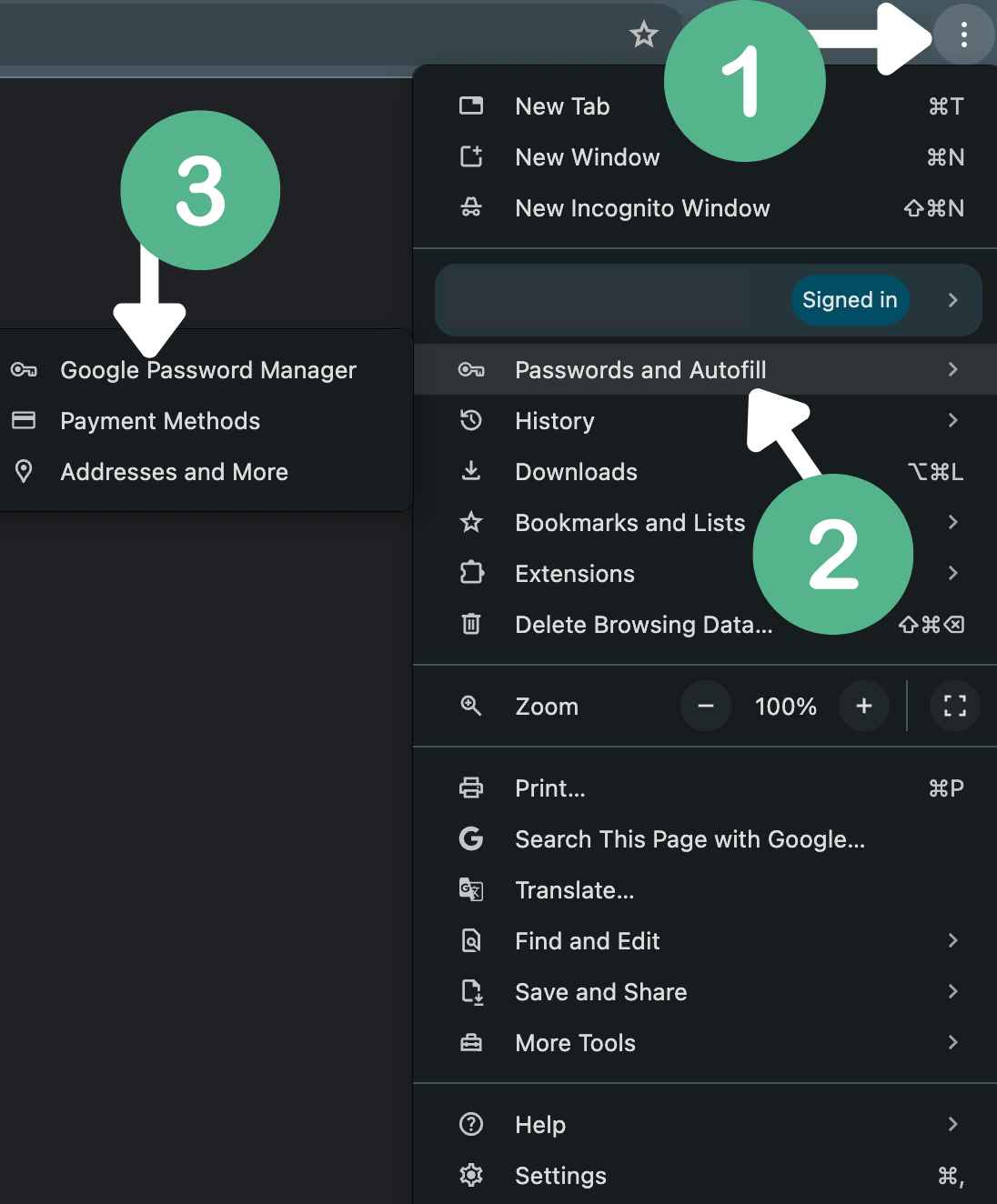
- Open Chrome and click the three-dot menu in the top right
- Hover over Passwords and Autofill
- Click Google Password Manager
Two faster routes to the same screen: type chrome://password-manager/passwords into the address bar, or go straight to passwords.google.com in any browser.

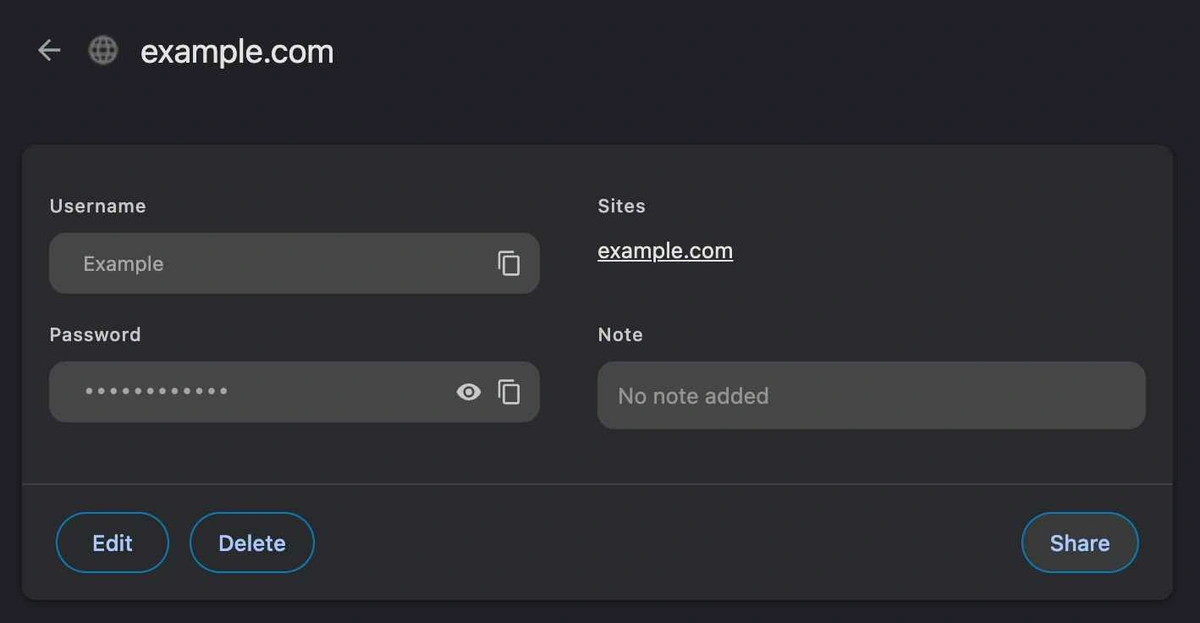
In the Passwords tab you will see every site Chrome has stored a login for.
- Click any entry to open it
- Click the eye icon to reveal the password
- You will be asked to unlock your device with your Windows PIN, Mac password, or fingerprint first
- Click Edit to change the stored username or password
On Android
- Open the Chrome app and tap the three dots
- Tap Settings, then Password Manager
- Tap any entry and confirm with your screen lock or fingerprint to reveal it
Android also exposes the same list outside Chrome, under Settings > Google > Autofill > Google Password Manager. Many phones let you pin a Google Password Manager shortcut to the home screen from that screen.
On iPhone and iPad
- Open the Chrome app and tap the three dots in the bottom right
- Tap Settings, then Password Manager
- Tap an entry and authenticate with Face ID, Touch ID, or your passcode
Note that this is separate from Apple's own saved passwords. If a login is missing here, it may be stored in iCloud Keychain instead.
How to Add, Edit, and Delete Saved Passwords
To add one manually

Open Google Password Manager, click Add above the list, then enter the site URL, username, and password.
To edit one
Open the entry, click Edit, change the username or password, and save.
One thing that catches people out: editing the entry does not change your actual password on the website. If you change your Netflix password, you have to change it on Netflix and then update the saved entry so the two match. Otherwise Chrome will keep autofilling the old one.
To delete one
Open the entry and click Delete. If the password is synced to your Google account, it disappears from every device signed into that account, not just the one in front of you.
How to Export Your Chrome Passwords
Exporting is how you move to a different password manager, or take a backup before wiping a machine.
- Open Google Password Manager
- Click Settings in the left sidebar
- Click Export passwords, then Download file
- Confirm with your device PIN, password, or biometrics
- Chrome saves a
.csvfile to your downloads folder
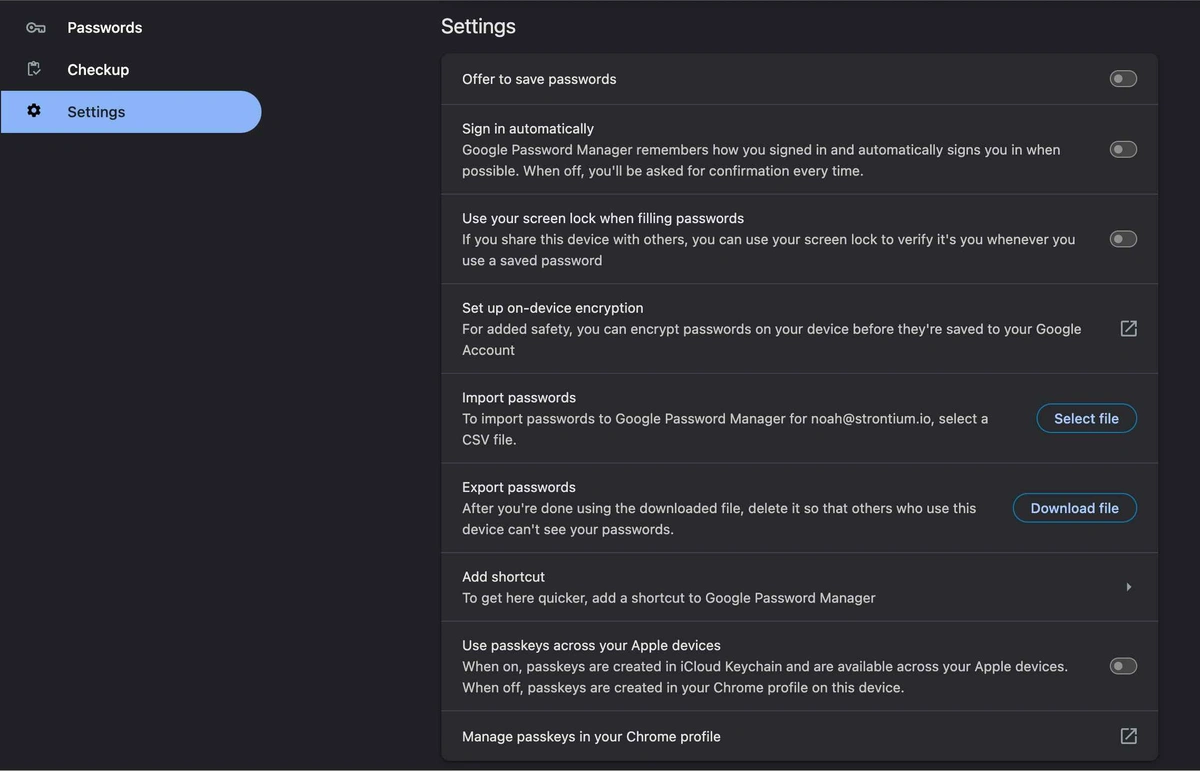
Treat that CSV as radioactive. It is a plain text file listing every username and password you own, with no encryption on it at all. Anything that touches your downloads folder can read it, and so can anyone who later recovers the file from your trash.
Import it into your new password manager, then delete the file and empty your trash or recycle bin straight away. Do not email it to yourself, and do not leave a copy in cloud storage.
Importing works the same way in reverse: Settings > Import passwords, then select a CSV.
Password Checkup and On-Device Encryption
Two features in Google Password Manager are worth turning on, and one of them has a catch.
Password Checkup compares your saved passwords against known data breaches and flags three problems: credentials that have appeared in a breach, passwords you have reused across sites, and passwords that are simply too weak. Find it under Checkup in the sidebar. Work through the compromised list first, since those are credentials attackers already have.
On-device encryption changes who can read your passwords. By default Google encrypts your synced passwords but holds the keys, which means Google can technically access them. Switch on on-device encryption and the keys never leave your devices.
The catch is that it is irreversible and unrecoverable. Once enabled you cannot turn it off, and if you lose both your Google password and your device screen lock, nobody can restore those passwords for you. That is the trade-off: real privacy, no safety net.
Should You Use Chrome's Password Manager?
For one person, on Chrome, on their own devices, it is genuinely fine. It is free, it is built in, autofill works, and Password Checkup is a real security feature that most people never enable elsewhere.
It runs out of road in four specific places.
Local access. Passwords are encrypted at rest using your operating system account, which protects them from someone stealing the drive. It does not protect them from someone using your unlocked computer. Anyone sitting at your logged-in profile can export every password you own to a CSV in about thirty seconds. There is no separate master password standing in the way, and no inactivity lock.
Other browsers. The moment you use Safari on your phone or Firefox at work, your passwords are in the wrong place.
Sharing. This is the one that breaks teams. Google Password Manager is built around a single Google account. Sharing a login with a colleague means reading it out, pasting it into Slack, or emailing it, and every one of those leaves the password sitting in a message history you do not control. When that person leaves, you have no way to revoke what they already copied down. The only real fix is changing the password and telling everyone the new one, which is exactly the process that pushes teams back onto spreadsheets.
Anything beyond passwords. No shared notes, no API keys, no billing details, no record of who accessed what.
For a fuller treatment of the security side, see our analysis of whether Google Password Manager is safe. If you want Chrome to stop prompting you entirely, here is how to disable Chrome's password manager. And if you are hunting for a specific login rather than managing the list, start with how to find your Google password list.
When Your Team Shares Logins, Chrome Stops Working
Everything above assumes the passwords are yours. The moment three people need the same client login, Chrome has no answer for you.
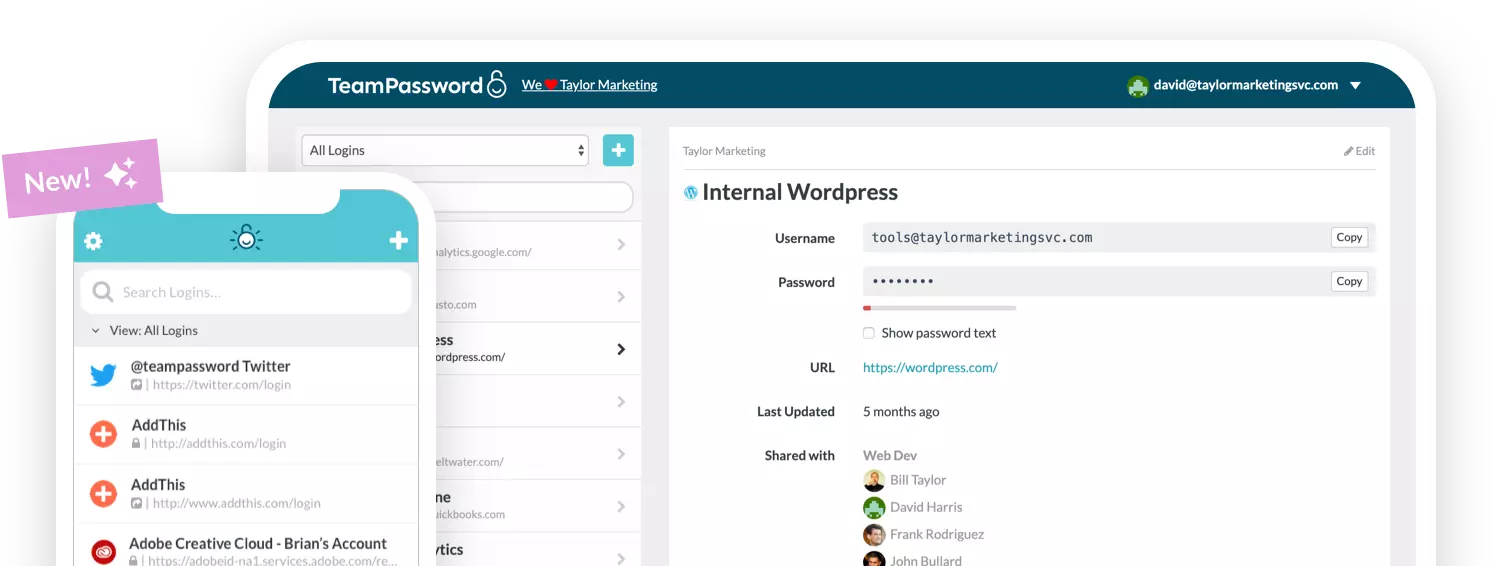
That is the gap TeamPassword fills. Logins live in shared groups rather than in one person's Google account, so you grant access to a group instead of sending a password. When someone leaves the team, you remove them and their access ends, with no scramble to rotate credentials across a dozen accounts. An activity log records who opened what and when, and the browser extension autofills from the shared vault the same way Chrome does from yours.
Moving over uses the same CSV you exported above. These walk through it:
- Video walkthrough: How to import records using a CSV
- Step-by-step guide: How to import records using a CSV
You can try it with your real logins on a 14-day free trial, no credit card required.
Chrome Saved Passwords FAQs
Why can't I see my saved passwords in Chrome?
Three usual causes.
You are signed into the wrong Google account. Click the circular profile icon at the top right of Chrome. If the email shown is not the one you expect, use Add another account or sign out and back in with the right one. Passwords saved under a different account will not appear.
You are not signed in at all. Passwords saved while signed out stay on that one device and never sync.
Chrome was never saving them. Check that Offer to save passwords is switched on in Google Password Manager settings. If it has been off, there is nothing to find.
Does Chrome save passwords in incognito mode?
No. Chrome will autofill an existing saved password in incognito, but it will not offer to save anything new from an incognito window.
Where are Chrome passwords stored on my computer?
In an encrypted local database inside your Chrome profile folder, tied to your operating system account. Windows uses DPAPI and macOS uses the system Keychain, which is why Chrome asks for your Windows PIN or Mac password before revealing anything. If you are signed in and syncing, a copy also sits in your Google account.
Can I use Google Password Manager without Chrome?
Partly. You can read and edit the list at passwords.google.com from any browser, and on Android it fills passwords into apps. But autofill in a non-Chrome desktop browser is not supported, so day to day it only really works if Chrome is your main browser.
Does Google Password Manager store passkeys?
Yes. Passkeys appear under their own tab, separate from passwords, and sync across devices signed into the same Google account. Read more on how passkeys work.
How many passwords does Chrome have saved?
The count sits at the top of the Passwords tab in Google Password Manager. It is usually a larger number than people expect, and it is worth running Password Checkup against the list before you decide what to keep.